At the start of my PhD, I couldn’t touch type. I had to look at my hands to type, which was fine, except that I couldn’t spot errors onscreen as they occurred – I had to look up to read, check for mistakes, move the flashy line in Word, then look down to revise.
Why did I choose to learn to touch type?
- I had a hazy idea that people who touch type could type much faster than me (for the record, they can).
- I realised that for the next 3 years in my project (and likely the several years of my life after that, if I stayed the course in academia), I would be spending nearly all my productive time in front of a screen. I could leverage my time in the PhD to practice touch typing – this was the perfect opportunity.
- My work is almost entirely done by typing words on a keyboard (and likely will be for years to come). It makes sense to max out my ability here, to make my typing as smooth, fast, and accurate as possible.
How did I learn?
I attribute my success in this skill to three things:
- 90% – Typing Club
- 9% – Keyboard with blank keycaps
- 1% – Other typing practice websites
Typing Club
The big hitter in my learning was Typing Jungle on typingclub.com (free to use but has ads). They have a really nice progression of lessons to learn skills. These start with the absolute basics of touch typing, which made the program very accessible to a newbie.
To ensure I actually visited the site and did the practice, I implemented some other measures:
- For a while (on and off for about nine months), I started each workday with 10 minutes on Typing Club before moving on to work-work. I chose 10 minutes because it felt so short that it was silly to skip; if this feels too long, try 5 or 3 minutes.
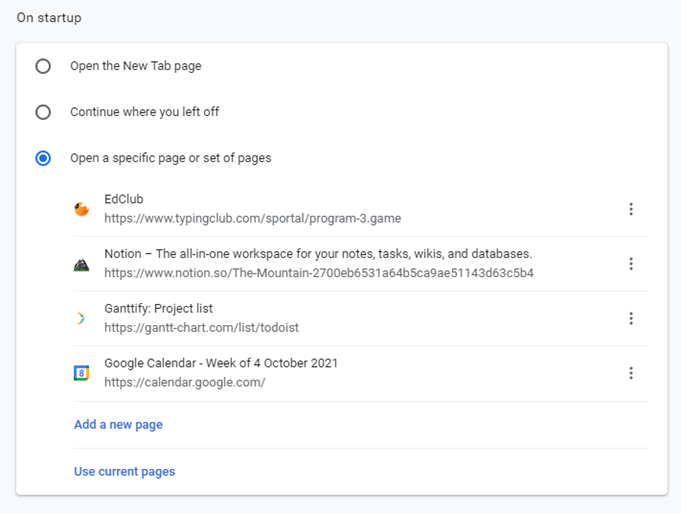
- I set Chrome to open Typing Club (among other useful pages) on startup, which helped remind me to start the day with practice.
- I created a timer on FocusMeter (mobile app) to guide me through the first work period of the day, which included 10 mins typing followed by a 1-hour “Hour of Power”, when I worked on the most important task for the day. I didn’t use the timer every day, but it was super helpful when I did. Timers don’t have to be long and complicated to work; this one just reduced the amount of time I would spend wrangling the executive function to get started.
Keyboards
I noticed myself falling back into old habits (looking at my fingers while typing) during the day, so I bought a keyboard with blank keycaps. The idea was that it would prevent me cheating by looking at the keys while I typed, and it worked.
I actually built it myself from parts ordered online; I was dating an engineer at the time who helped me build my first keyboard which gave me the literacy and confidence to buy and build my second one. Now I have blank keycaps at the office and at home. I still look at the keycaps sometimes, but it obviously doesn’t help me type anymore and the bad habit is nearly dead. Links to all the parts I used are at the end of this post.
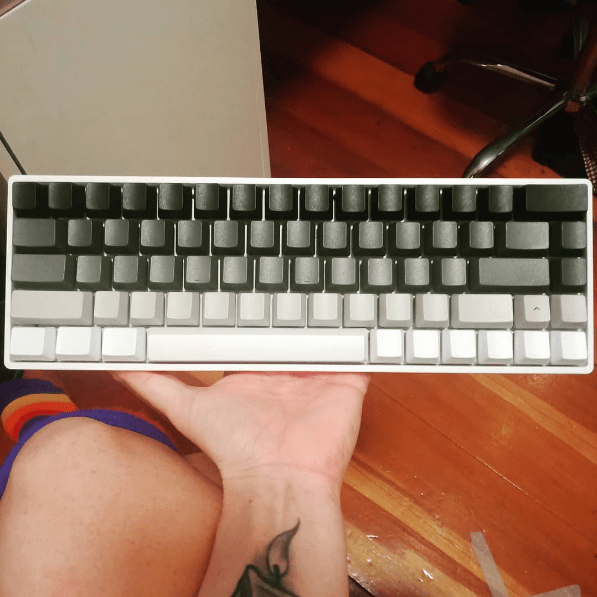
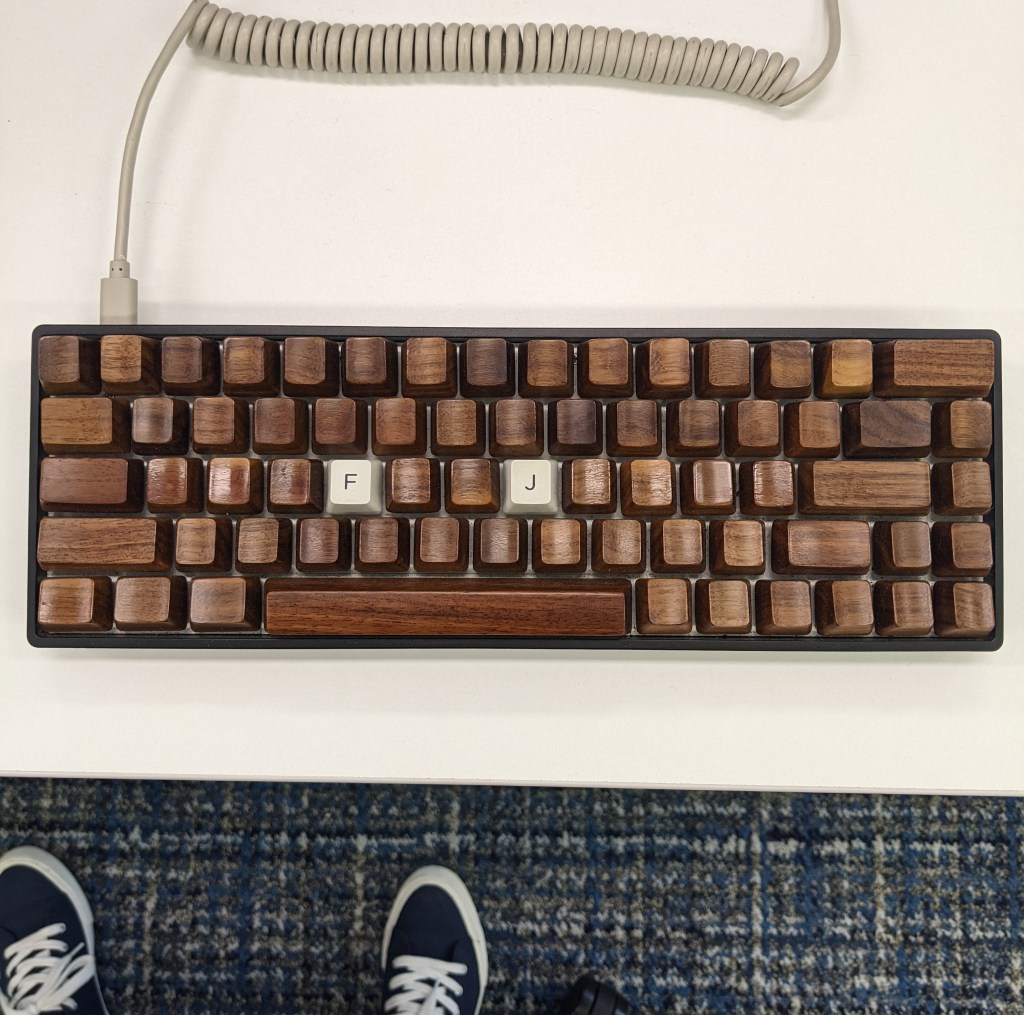
I also just love using these keyboards. Typing with them makes me happy, and I think that counts for something in work. Mechanical keyboards feel different under your fingertips when you type, more satisfying and solid (if you’ve used one, you know). These also have a killer backlight feature – mine light up different colours under each key as I tap it, but there are full-on flashy rainbow-vomit settings if you’re into that.
You can also buy fully constructed, ready-to-use keyboards with blank keycaps. The models turn over too quick to provide a useful long-term link, but you can start by searching “blank keyboard” or “mechanical keyboard blank keycaps”.
Other typing websites
I used these intermittently, as I felt like it.
This site uses English-similar words to teach you the patterns of typing in English without getting into ruts typing specific words. They apparently also calibrate to help you practice letters you’re bad at, but I never noticed this function (even though I suck at typing Q, Z and X, and I always mix up C/V, Y/U and S/D, these letters never preferentially appeared).
I would use English paragraphs for general practice and specialised tests when I wanted more practice at numbers and symbols.
List of parts for keyboards (prices in AUD)
Beware, buying and building mechanical keyboards is a deep rabbit-hole. Enter with caution. And check out r/MechanicalKeyboards for advice/reviews/judgment.
Greyscale keyboard
Base (60%, white, hot-swappable, dual mode i.e. Bluetooth and wired) = $108
Switches – Kailh Speed Gold (light, clicky, quiet enough to be ok in an office) x72 = $39
Keycaps – I used the totally blank ones, but I can only find the side-printed set. I also filled in gaps using 3 x white R1 u1 keycaps and a small set of spare grey keycaps. = $34 + $19 = $53
Total = $200
Wooden keyboard
Base (same but in black) = $108
Switches – Kailh Hako Violet x80 (light, tactile, even quieter) x80 = $58
Keycaps – you can get individual keycaps, but I bought the full walnut set, which I can’t find anymore = $182
Total = $348
 Zero Highlight